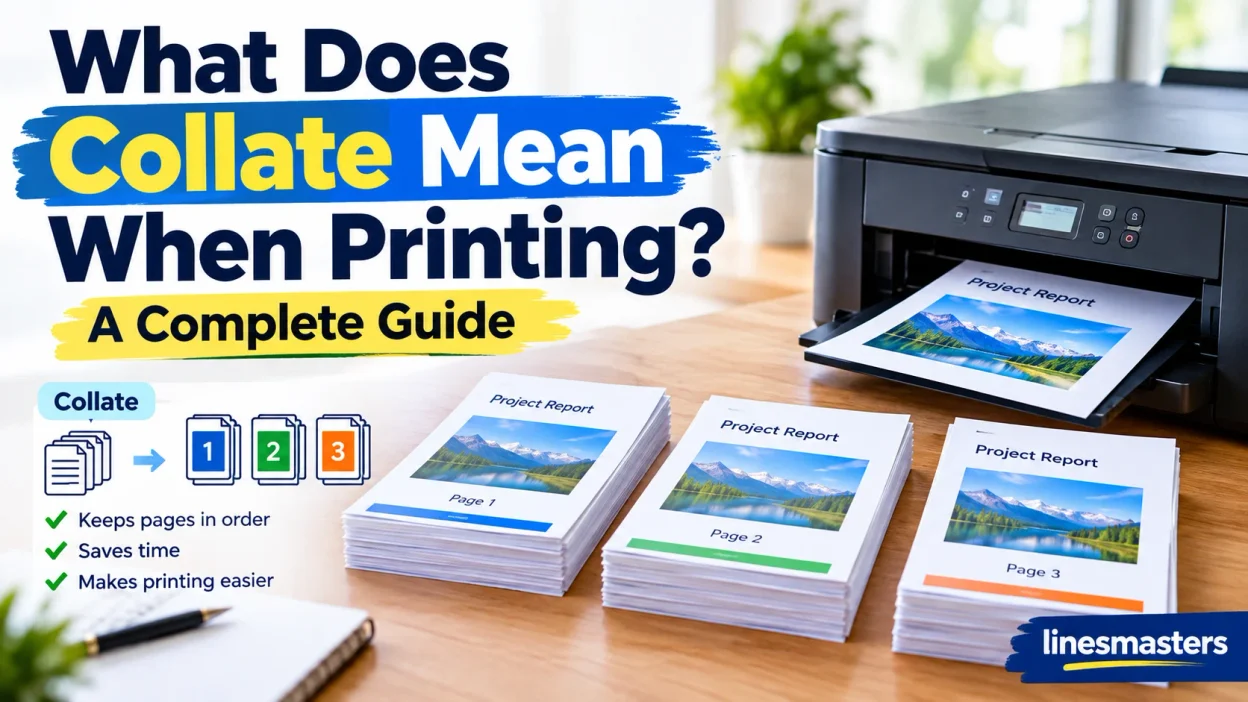
Learn What Does Collate Mean When Printing? A Complete Guide to see how a printer sorts multiple document copies in the correct page sequence.
A printer menu can seem confusing when the collate option appears, but its terminology is simple. In printing, collate means the printer will arrange multiple copies of a multi-page document in the correct page sequence. Instead of every first and second page being stacked together, it creates complete sets in the right order. This function is useful for an office report, school presentation, manual, meeting handout, or other documents, while reducing sorting time.
The checkbox for collate can appear in the settings before you press Print or print. The key difference between collated and uncollated printing is how pages are grouped. Collated printing keeps each copy together, while uncollated printing groups pages by number. This is useful for reports, booklets, forms, presentations, and books. Across the industry, brands, businesses, and packaging work also benefit from modern technology and advancement, making printing easier for different types of boxes, cards, and other materials. Whether you print a journal, restaurant menu, packet, or report, the setting helps keep the pages in the right sequence. You can then choose an available option, understand the technical details, and explore your printer with more confidence.
Quick Answer:
Collate means arranging multiple copies of a multi-page document into complete sets in page order.
For example, suppose you print three copies of a five-page document.
With Collate ON, the printer produces:
1 → 2 → 3 → 4 → 5 | 1 → 2 → 3 → 4 → 5 | 1 → 2 → 3 → 4 → 5
Each group represents one complete copy.
With Collate OFF, the output looks like:
1 → 1 → 1 | 2 → 2 → 2 | 3 → 3 → 3 | 4 → 4 → 4 | 5 → 5 → 5
The total number of pages doesn’t change. Only their arrangement changes.
What Does Collate Mean on a Printer?
The word collate means to collect and arrange items in a particular order. In printing, it refers to organizing individual pages into complete copies of a document.
Imagine you have a 10-page report and need five copies. Without collation, your printer may produce five copies of page 1 first. It then produces five copies of page 2 and continues through page 10.
You’d have to gather those pages and manually assemble five reports.
When you turn Collate on, the printer organizes the output into five complete 10-page reports. That’s the main purpose of the setting.
A Simple Collated Printing Example
Consider a three-page document that needs four copies.
| Printing Setting | Result |
| Collate ON | 1-2-3, 1-2-3, 1-2-3, 1-2-3 |
| Collate OFF | 1-1-1-1, 2-2-2-2, 3-3-3-3 |
The difference becomes much more useful as the document gets longer.
For a 50-page document, manually arranging several copies can become a tedious chore. Collation handles that organization automatically.
What Does the Collate Checkbox Actually Do?
The checkbox tells your printing system how to arrange multiple copies.
It doesn’t rewrite your document. It doesn’t change the words, images, margins, or page design.
Instead, it controls how the printed pages are organized as they come out of the printer.
That’s an important distinction. Collation affects the physical output rather than the content of the original file.
Collated vs. Uncollated Printing
The easiest way to understand collated printing is to compare it with uncollated printing.
Uncollated printing groups identical page numbers together. Collated printing groups pages into complete document sets.
| Feature | Collated | Uncollated |
| Page arrangement | Complete document sets | Same pages grouped together |
| Example | 1-2-3, 1-2-3 | 1-1, 2-2, 3-3 |
| Best for | Reports and packets | Individual page distribution |
| Manual sorting | Usually unnecessary | Often necessary |
| Complete copies | Yes | No |
| Main benefit | Saves sorting time | Keeps identical pages together |
When Should You Use Collated Printing?
Choose Collate when every person needs a complete copy of the document.
Common examples include:
- Multi-page reports
- School assignments
- Meeting packets
- Training materials
- Presentation handouts
- Instruction manuals
- Business proposals
- Multi-page forms
- Reference documents
- Information packets
If you’re printing ten copies of a six-page handout for a meeting, collation makes sense because each person can receive a complete set immediately.
When Should You Use Uncollated Printing?
Uncollated printing has useful purposes too.
You might turn Collate off when:
- You need many copies of one specific page.
- Different pages will go to different people.
- You’re distributing individual sheets.
- You’re replacing selected pages in existing documents.
- You need several copies of a particular form page.
- Someone else will assemble the pages later.
For example, suppose you need 30 copies of page 2 from a three-page form. Printing the entire three-page document 30 times would waste paper.
The right setting depends on what you plan to do with the pages afterward.
How Does Collating Work on a Printer or Copier?
Although the exact menu differs between printers, the basic process remains simple.
How to Turn On Collate When Printing
In most print workflows, you can follow these steps:
- Open the document you want to print.
- Select Print.
- Enter the number of copies.
- Find Collate or Collated.
- Turn it on when you need complete sets.
- Check your other print settings.
- Start the print job.
Some printer drivers place the option under Layout, Copies, Finishing, or another settings section.
The exact location depends on the printer, driver, operating system, and application.
How Collating Works on a Copier
Multifunction copiers can offer similar functionality directly from their control panels.
You may see options such as:
- Collate
- Group
- Finishing
- Page Order
- Sets
Although the wording changes, the basic idea is easy to recognize.
Collate creates complete sets.
Group or uncollated printing keeps matching pages together.
Why Does My Printer Menu Look Different?
Not every printer uses the same interface.
Depending on your printer and software, you might see:
- Collate
- Collated
- Collate Pages
- Page Order
- Group
- Finishing
- Copies
Some printers may not offer the feature in every printing situation.
That’s why it’s better to understand what the setting does rather than memorize where one manufacturer places the checkbox.
When Should You Turn Collate On or Off?
A simple rule makes the choice easy.
Turn Collate ON When:
You want complete documents ready to distribute.
Use it when:
- Each recipient needs every page.
- The document contains multiple pages.
- You don’t want to sort pages manually.
- You’re printing reports.
- You’re preparing presentation materials.
- You’re creating training packets.
- You need several identical document sets.
For example, printing five copies of a 12-page report should normally be a collated job.
Turn Collate OFF When:
You want identical pages grouped together.
Use it when:
- You’re distributing pages individually.
- You need replacement sheets.
- You want a stack of the same page.
- You’re preparing page-specific materials.
- Different recipients need different pages.
Think of it this way:
Need complete documents? Choose Collate. Need stacks of individual pages? Choose Uncollated.
Does Collating Matter for One Copy?
Usually, no.
If you’re printing one copy of a five-page document, there aren’t multiple copies to organize. The pages already form one sequence.
The setting becomes useful when you’re printing multiple copies of a multi-page document.
Collate vs. Double-Sided Printing
These two settings often appear close together in printer menus. That’s why people sometimes confuse them.
However, they control completely different things.
Collating controls page order between copies.
Duplex printing controls whether the printer uses one or both sides of a sheet.
| Setting | What It Controls |
| Collate | Order of pages between copies |
| Duplex | One-sided or two-sided printing |
| Orientation | Portrait or landscape |
| Copies | Number of copies |
| Paper Size | Physical sheet size |
| Print Quality | Resolution and print characteristics |
These settings can work together.
For example, you could print three collated, double-sided copies of a 20-page report. Each copy would still contain all 20 pages while using both sides of the paper.
Why Duplex and Collate Work Well Together
Suppose you need 10 copies of a 40-page report.
With duplex printing, the 40 pages can occupy about 20 sheets per copy. With collation enabled, those 20 sheets remain organized as one complete report.
That combination can make large print jobs easier to distribute while also reducing paper consumption.
Collating With Stapling and Other Finishing Options
Collation becomes particularly useful when printed documents need additional finishing.
Suppose an office prints 25 copies of a 15-page training guide.
If the printer creates complete sets, each 15-page group can move directly to the next finishing step.
Possible finishing tasks include:
- Stapling
- Binding
- Filing
- Distribution
- Document assembly
- Presentation preparation
However, collation doesn’t automatically mean the printer will staple the pages.
Automatic stapling requires compatible finishing equipment. A basic home printer may provide collation without offering any physical finishing function.
Why Collation Helps With Stapling
Imagine receiving this output:
1, 1, 1, 2, 2, 2, 3, 3, 3…
You can’t simply staple each group because the pages aren’t assembled into documents.
Now compare that with:
1, 2, 3 | 1, 2, 3 | 1, 2, 3
Each set is already organized.
That’s where collation saves real work.
Collating and Booklet Printing Are Not the Same
Here’s another common misunderstanding.
Collation doesn’t create a booklet.
Booklet printing changes the placement of pages on sheets so that the printed sheets can be folded and assembled into a booklet.
Collation simply determines how multiple copies are organized.
For example, a booklet layout might place pages in an order designed for folding. That’s different from ordinary collated output.
If you’re trying to create a folded booklet, look for a Booklet or similar layout option. Don’t assume that selecting Collate will create the booklet automatically.
Does Collating Use More Paper?
No.
For the same document and number of copies, selecting Collate doesn’t increase the number of pages required.
Consider a five-page document printed three times.
You need:
5 pages × 3 copies = 15 printed pages
Whether you collate those pages or not, the print job still requires 15 pages.
The difference is simply:
Collated: 1-2-3-4-5 repeated three times.
Uncollated: three copies of page 1, followed by three copies of page 2, and so on.
However, collation can indirectly help prevent mistakes. If uncollated pages become mixed up and need reprinting, that can create unnecessary paper use.
Does Collating Make Printing Slower?
There isn’t one universal answer.
Print speed depends on several factors, including:
- Printer model
- Document complexity
- Number of copies
- Printer memory
- Connection type
- Print driver
- Color or monochrome output
- Finishing features
- Duplex printing
Some printers can organize large jobs efficiently. Others may process pages differently depending on the print workflow.
Therefore, it’s better not to assume that Collate always makes printing slower.
The practical benefit is usually organization rather than speed.
Does Collate Affect Print Quality?
No.
Collation doesn’t determine:
- Resolution
- Sharpness
- Color accuracy
- Ink coverage
- Font quality
- Image quality
Those characteristics depend on other printer and document settings.
Collate only determines how multiple copies are arranged.
Think of it like organizing books on a shelf. The books themselves don’t change. You’re simply deciding how they should be grouped.
Read More : 301+ Drool Pickup Lines That Work in 2026
What Happens If You Don’t Collate?
If you print multiple copies of a multi-page document without collation, the printer may group matching pages together.
For a four-page document printed three times, the output could look like:
1, 1, 1 → 2, 2, 2 → 3, 3, 3 → 4, 4, 4
That isn’t necessarily a problem.
It becomes a problem only when you need complete documents and don’t want to assemble them manually.
For individual page distribution, however, this arrangement can be exactly what you need.
Can You Collate a PDF?
Yes, in many print workflows.
A PDF can be printed as multiple copies with the printer or print dialog controlling the output order.
The important point is that collation usually affects the print job rather than changing the PDF itself.
Your original PDF remains the same.
If you open it later, its pages haven’t been rearranged simply because you selected Collate while printing.
Does Collate Mean Sorted?
In everyday printing language, collated and sorted into complete sets describe essentially the same practical result.
The important distinction is between:
Collated: complete copies in page order.
Uncollated: matching pages grouped together.
The word “collate” can have broader meanings in publishing and document work. However, when you see it in a printer’s copy settings, this is the distinction that matters.
A Practical Case Study: Printing a 10-Page Report
Imagine you’re preparing eight copies of a 10-page report for a business meeting.
You select eight copies and leave Collate turned off.
The printer may produce:
- Eight copies of page 1
- Eight copies of page 2
- Eight copies of page 3
- Eight copies of page 4
- Eight copies of page 5
- Eight copies of page 6
- Eight copies of page 7
- Eight copies of page 8
- Eight copies of page 9
- Eight copies of page 10
Now someone has to assemble eight separate reports.
Turn Collate on and the printer instead organizes the output as:
1-2-3-4-5-6-7-8-9-10
Then another complete set follows.
That means the meeting materials are essentially ready for distribution as soon as they leave the printer.
The Practical Lesson
The printer isn’t saving pages by collating.
It is saving your time and effort.
That’s the real advantage.
Common Collate Printing Problems
Even though the concept is simple, print jobs can sometimes behave differently than expected.
The Pages Come Out in the Wrong Order
Check your page-order settings.
Some printer drivers allow you to control whether pages print from first to last or last to first. Collation and page order can be separate settings.
If your document comes out backward, changing Collate alone may not solve the problem.
The Printer Produces Too Many Copies
Check the number of copies in both your application and printer settings.
Some software and printer drivers can each have their own copy controls. If both are configured unexpectedly, the final output may not match what you intended.
Before printing a large job, check the preview and copy count.
The Collate Option Is Missing
The option may depend on:
- Printer model
- Printer driver
- Application
- Selected layout
- Operating system
- Print method
If you don’t see Collate, check your printer’s documentation or advanced print settings.
Don’t assume that every printer offers the feature in exactly the same location.
Quick Guide: Should You Choose Collate?
Use this table when you’re unsure.
| Printing Task | Best Choice |
| 5 copies of a 10-page report | Collate |
| 20 copies of a presentation | Collate |
| 100 copies of one flyer | Collate isn’t important |
| 50 copies of page 1 | Uncollated |
| Multi-page training packets | Collate |
| Replacement pages for binders | Often Uncollated |
| Complete manuals | Collate |
| Individual forms for sorting later | Uncollated |
A useful rule is simple:
If every person needs a complete document, choose Collate.
If you need identical pages grouped together, choose Uncollated.
Frequently Asked Questions
1. What does collate mean when printing?
Collate means the printer arranges each multi-page document copy in the correct page sequence, keeping every complete set together.
2. What is the difference between collated and uncollated printing?
Collated printing keeps each copy in the right order, while uncollated printing groups the same page numbers together.
3. When should I use the collate setting?
Use the collate setting when printing multiple copies of reports, booklets, forms, presentations, books, or other multi-page documents.
4. Where can I find the collate option?
You can usually find the collate checkbox in your printer settings or print menu before selecting Print.
5. Does collating save time?
Yes. Collate can save sorting time because the printer creates complete document sets instead of requiring you to arrange the pages manually.
Conclusion:
Understanding the collate setting makes printing multiple copies of a multi-page document much easier. By choosing collated printing, you can keep each set in the correct page sequence and reduce manual sorting time.
Whether you are preparing reports, booklets, forms, presentations, or other documents, this simple printer setting can make the printing process more organized.



[…] Read More : What Does Collate Mean When Printing? A Complete Guide […]
[…] Read More : What Does Collate Mean When Printing? A Complete Guide […]